Accommodation Wi-Fi can look fine at check-in and fail the next morning, just as a client call starts. A speed test taken in an empty apartment won’t tell you what happens when the building fills up, and a strong Wi-Fi signal won’t help if the internet connection behind it is down.
A useful backup plan has three layers: mobile data that works at your desk, a place you can reach if the whole building loses service, and work you can do without a connection. Set them up before you need them. Buying a data plan during an outage is much harder when your only way to download it is the Wi-Fi that just failed.
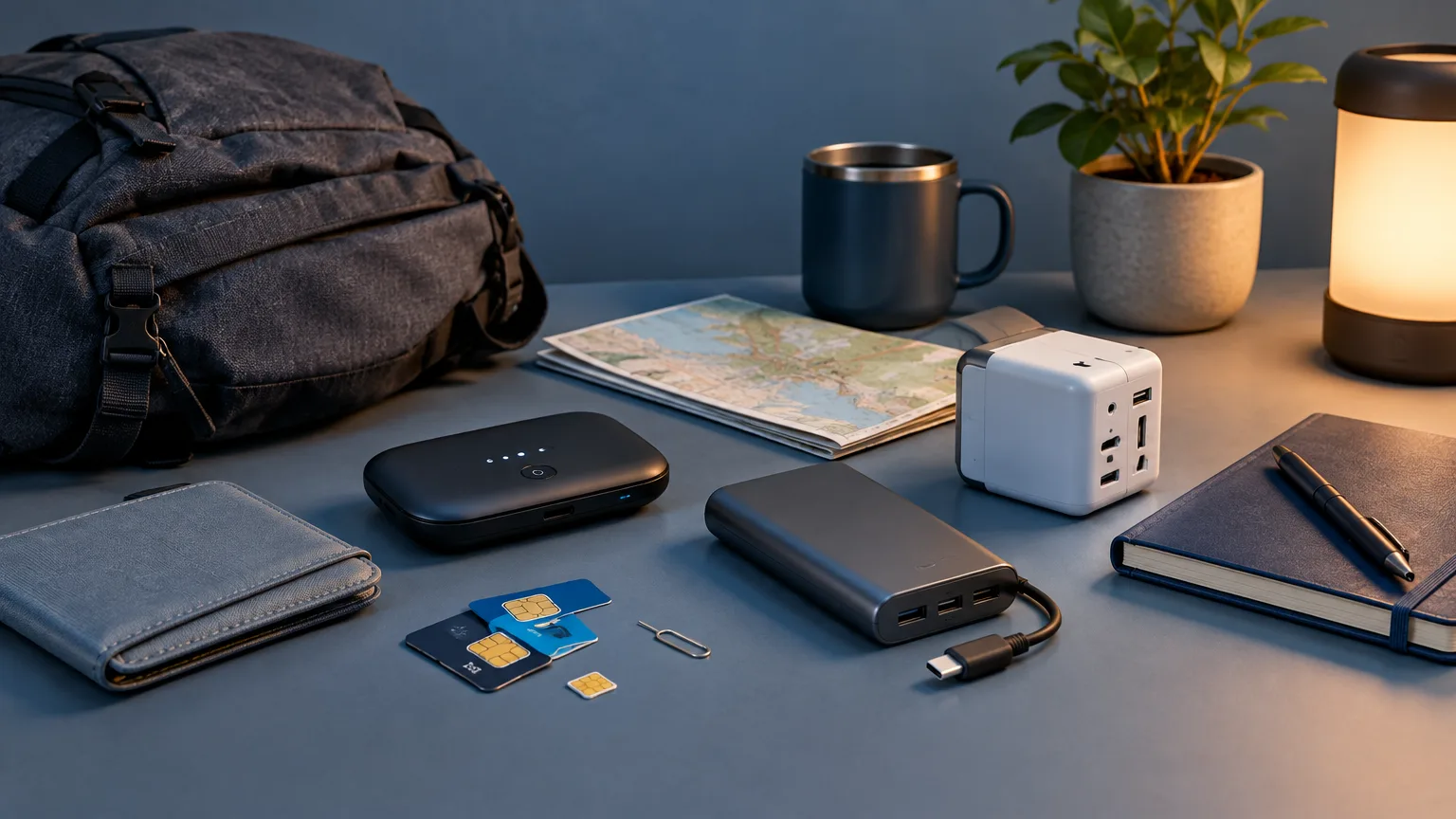
Build backups that fail differently
The aim isn’t to carry as many devices as possible. It’s to avoid depending on the same weak point twice. Your accommodation and a café downstairs may share a building-wide outage. A phone and a portable hotspot may both use the same cellular network. Two travel eSIMs aren’t much of a backup if neither gets a signal inside your apartment.
For most solo remote workers, a sensible setup is:
- Accommodation Wi-Fi for routine work.
- A tested local SIM, travel eSIM, or home-carrier roaming plan for phone tethering.
- A nearby workspace whose connection you’ve checked independently.
- Offline access to the files needed for your next work block.
The order matters. Mobile data lets you recover without leaving a call or moving your equipment. A workspace gives you a way out if cellular coverage is poor, data is exhausted, or the outage lasts all day. Offline work buys time when neither connection is immediately available.
Choose mobile data for the work, not the trip
Before buying a backup plan, check whether your existing U.S. carrier includes service at your destination and what it charges for data and tethering. A familiar plan may be the simplest short-trip option. For longer stays or heavier laptop use, compare it with a local prepaid SIM or eSIM. Travel eSIMs can be convenient to arrange ahead of arrival, but packages differ in coverage, duration, and data allowance. On iPhone, using another carrier’s travel eSIM requires an unlocked phone; some travel eSIMs provide data without a local phone number.
Don’t choose by the word “unlimited” alone. Check how much high-speed data you can use before speeds drop, whether tethering is allowed, which countries the package covers, and when its validity period begins. Those details determine whether the plan can carry a workday rather than just load maps and messages. For example, Airalo’s unlimited packages allow hotspot use but count tethered traffic toward a daily high-speed allowance. That’s one provider’s policy, not a rule for every eSIM.
Coverage deserves more attention than the advertised maximum speed. Ask your host which carrier works inside the property, then test the connection at the actual desk, with the doors and windows as they’ll be while you work. If your first cellular plan has a weak signal there, buying a second package on the same network may change nothing. A different network—or a workspace elsewhere—offers a more useful fallback.
Keep your U.S. number in mind if you need it for calls or account sign-ins. A data-only travel eSIM doesn’t replace voice and text service. Check your phone’s line settings and your home carrier’s charges before departure so an automatic switch doesn’t leave you using an unexpectedly expensive roaming connection.
Make the phone hotspot your first response
A phone hotspot is usually enough to rescue email, shared documents, messaging, and a meeting. But test it with your laptop before you travel, not merely with another phone. Open the apps you use for work, join a test call, and confirm that your laptop is using cellular data rather than reconnecting to the property’s Wi-Fi.
Android phones commonly share mobile data by Wi-Fi, Bluetooth, or USB, though some carriers limit or charge extra for tethering. On an iPhone, Personal Hotspot shares the line selected for cellular data. That distinction matters if you keep your U.S. line active alongside a travel eSIM: check which line is supplying data before starting a long call.
Give the hotspot a password, keep the phone charged, and carry a cable and power bank. If you tether by USB, test that exact phone-and-laptop combination in advance; it isn’t a universal plug-and-play fix. Once connected, pause large cloud syncs, software downloads, and other background traffic so your emergency data is spent on work.
A dedicated portable hotspot is worth considering if you regularly connect several devices, need to keep your phone free, or spend long hours on cellular data. It adds a device to charge and a plan to manage. It doesn’t add genuine network redundancy unless its SIM can reach a different usable network from your phone.
Judge a backup connection by its weak direction
Download speed is only part of a work connection. Video meetings and file uploads depend on upload speed; delays and dropouts matter even when a speed test reports an impressive number.
As a reference point, Zoom recommends roughly 2.6 Mbps upload and 1.8 Mbps download for a 720p group video call in its web app. Treat those as application guidance, not a guarantee that a connection just above them will be comfortable. Test while people are using the network, and try a real call if meetings are central to your job. If cellular service is marginal, turning off your camera may be more effective than repeatedly switching networks.
Ask prospective accommodations for a recent speed test from the unit, rather than a building-wide claim. Better still, confirm where the router is, whether the internet works from the desk, and whether you can use a wired connection. None of those questions replaces your own test on arrival, but they can expose an obvious mismatch before you book a month.
Pick an escape route before the outage
Find one realistic place to work near your accommodation during your first day in a new city. A coworking space is usually a better bet for a long call than a café: you can ask about desk availability, power, quiet areas, and call booths. Check opening hours, day-pass rules, and whether a booth can actually be reserved. Don’t assume a paid desk includes private-call space.
A hotel business area or café may be enough for messages and document work. For confidential calls, though, consider who can hear you and whether your employer permits work on public networks. The FTC notes that most websites use encryption, making public Wi-Fi generally safer than it once was; that doesn’t remove the need to verify the network name, keep devices updated, and follow your organization’s security rules.
Save the workspace address, hours, and booking details on your phone. Visit or call once while everything is working. A backup you can’t find, enter, or take a call from at 8 a.m. isn’t much of a backup.
Give yourself useful work when every connection fails
Offline preparation should match your next deadline. Download the brief, working files, reference material, and contact details you’ll need that day—not an indiscriminate copy of every project. Drafts, edits, code, slide notes, and expense records can often move forward locally, even when sending them must wait.
Cloud storage requires deliberate setup. With Google Drive, for instance, offline access to Docs, Sheets, and Slides must be enabled while you’re connected, and individual files can be marked available offline. Check that the files open after disconnecting from Wi-Fi. If you work with sensitive material, use only offline storage methods approved by your employer or client.
Keep a short local list of the people to notify, along with their email addresses and the next deliverable due. Know which tasks require a live connection—calls, authentication, uploads, and some shared editing—and which you can finish offline. That distinction turns an outage into a scheduling problem instead of a lost morning.
Use a simple outage sequence
When the connection drops during work, resist spending half an hour troubleshooting the router before checking your alternatives.
- Confirm the problem. Try another site or service and check whether another device can connect. If the whole property is offline, tell the host and ask for an estimated repair time.
- Switch to the tested cellular plan. Confirm the correct data line is active, connect the laptop, and pause background transfers.
- Protect the next commitment. If a call is close, join on audio or tell participants you may need to reconnect. If the hotspot is unstable, head to your preselected workspace with enough time to set up.
- Work offline if both routes fail. Make progress on prepared tasks and send the finished work once service returns.
Afterward, note what actually broke: the accommodation connection, weak indoor cellular coverage, an expired data package, a dead battery, or an inaccessible workspace. Fix that point before the next workday. A reliable digital nomad internet backup isn’t a particular gadget; it’s a tested sequence that lets you keep working when the first connection disappears.